
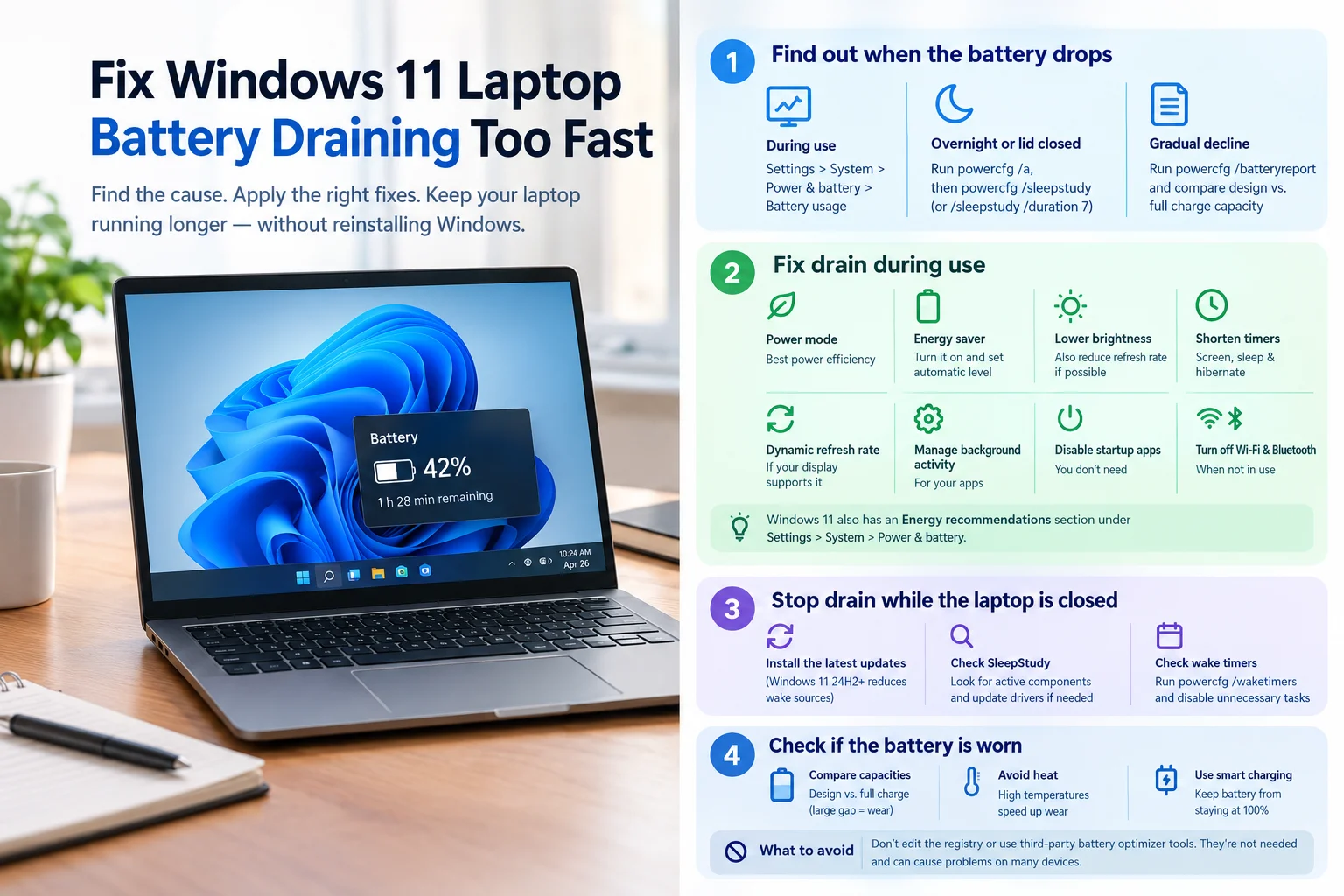
How to Fix Windows 11 Laptop Battery Draining Fast
If your Windows 11 laptop loses charge faster than it used to, the cause usually falls into one of two groups. Either apps and settings are using power while you work, or the laptop is losing charge while it’s closed or asleep. The fixes are different, so start by finding out which one you have. The steps below focus on the most common causes, and none of them require reinstalling Windows.
Step 1: Find out when the battery drops
The pattern tells you where to look.
- While you’re using the laptop: Go to Settings > System > Power & battery > Battery usage. This list shows which apps have used the most battery.
- Overnight or with the lid closed: Open Terminal as an administrator and run
powercfg /a. If the output lists “Standby (S0 Low Power Idle),” your laptop supports the Modern Standby power model. Then runpowercfg /sleepstudyto generate a report of which components and activities were active during Modern Standby. The report covers the last three days by default, so run it soon after a bad night. For a seven-day report, usepowercfg /sleepstudy /duration 7. - A gradual decline over weeks or months: Run
powercfg /batteryreport. It compares the battery’s design capacity with its current full-charge capacity.
Step 2: Fix drain during use
Work through these in order, since the first few usually make the biggest difference.
- Set Power mode to Best power efficiency. Go to Settings > System > Power & battery > Power mode. This limits background activity both on battery and when plugged in. Switch back to Balanced or Best performance when you need more speed.
- Turn on Energy saver. Under Settings > System > Power & battery > Energy saver, turn on “Lower screen brightness when using energy saver.” You can also set Energy saver to turn on automatically when the battery reaches a level you choose. Versions of Windows 11 before 24H2 call this feature Battery saver.
- Lower the screen brightness. The display is one of the biggest sources of battery use. If you don’t need smooth motion, lower the refresh rate as well.
- Shorten the screen and sleep timers. Go to Settings > System > Power & battery > Screen, sleep, & hibernate timeouts, and choose shorter times for when you’re running on battery.
- Turn on Dynamic refresh rate if your display supports it. Go to Settings > System > Display > Advanced display.
- Limit background activity for apps you don’t need. Go to Settings > System > Power & battery > Battery usage, select an app, choose More options > Manage background activity, and pick Always, Power optimized (recommended), or Never. This works for supported apps.
- Disable startup apps you don’t need. Go to Settings > Apps > Startup and turn off anything you don’t need at login.
- Turn off Wi-Fi and Bluetooth when you’re not using them. You can do this from Quick Settings in the taskbar. This matters less than the steps above, so it’s last.
Windows 11 also has an Energy recommendations section under Settings > System > Power & battery that gathers several of these options in one place.
Step 3: Stop drain while the laptop is closed
Many current Windows 11 laptops use Modern Standby, which keeps part of the system running while the lid is closed so it can check for notifications and sync. That’s why background activity can drain the battery overnight.
- Install the latest updates. Microsoft’s documentation says that starting with Windows 11 version 24H2, if Windows detects excessive battery drain during Modern Standby, it disables most wake sources. The PC then wakes mainly when you open the lid or press the power button. Check your version under Settings > System > About, then install pending updates under Settings > Windows Update.
- Check what SleepStudy shows. If the same component stays unusually active across sessions, check your laptop maker’s support site for updated chipset, network, audio, BIOS, or firmware drivers.
- Check for scheduled wake-ups. Run
powercfg /waketimersto list active wake timers. If a task you don’t need appears, disable or reschedule it in Task Scheduler. On systems that expose the Allow wake timers setting, you can also disable wake timers on battery under Control Panel > Power Options > Change plan settings > Change advanced power settings > Sleep > Allow wake timers.
Step 4: Check whether the battery itself is worn
Software can only do so much. Lithium-ion batteries lose capacity as they age and go through charge cycles. Run powercfg /batteryreport and compare Design Capacity with Full Charge Capacity. Full-charge readings are estimates and can shift a little, so a small gap is normal. A large gap means the battery has worn, and software settings can’t restore the lost capacity. Contact your laptop maker about service or replacement.
To slow wear, avoid heat, since Microsoft advises against using or charging the device at high temperatures. Keeping the battery at 100 percent all the time can also make it wear faster. Some laptops turn on Smart charging by default, which stops charging at a lower level when you stay plugged in. Check Settings > System > Power & battery to see whether it’s on.
What to avoid
Many forum posts suggest editing the registry to switch from Modern Standby to the older S3 sleep model. On many laptops, the firmware blocks S3 anyway, and registry overrides may not work. Third-party “battery optimizer” tools aren’t necessary either, since the steps above use built-in Windows settings.
Frequently asked questions
Does Windows 11 have a battery saver or Energy saver?
Yes. Current versions call it Energy saver, and older versions called it Battery saver. Energy saver can turn on automatically when the battery reaches a level you choose, and it can dim the screen and limit background activity.
Why does my laptop lose battery overnight?
If your laptop uses Modern Standby, closing the lid can put it into a low-power state that still allows some background activity. Scheduled tasks, apps, drivers, and wake events can keep it working through the night.
