
What Is TPM 2.0, and Why Does Windows 11 Need It?
If you tried to upgrade to Windows 11 and got a message saying your PC “doesn’t meet the minimum system requirements,” there’s a good chance TPM 2.0 is the reason. It sounds like obscure hardware jargon, but it’s actually a small security chip that Microsoft now considers essential. Here’s what it is, why Windows 11 won’t run without it, and how to check if your PC already has one.
What Is TPM 2.0?
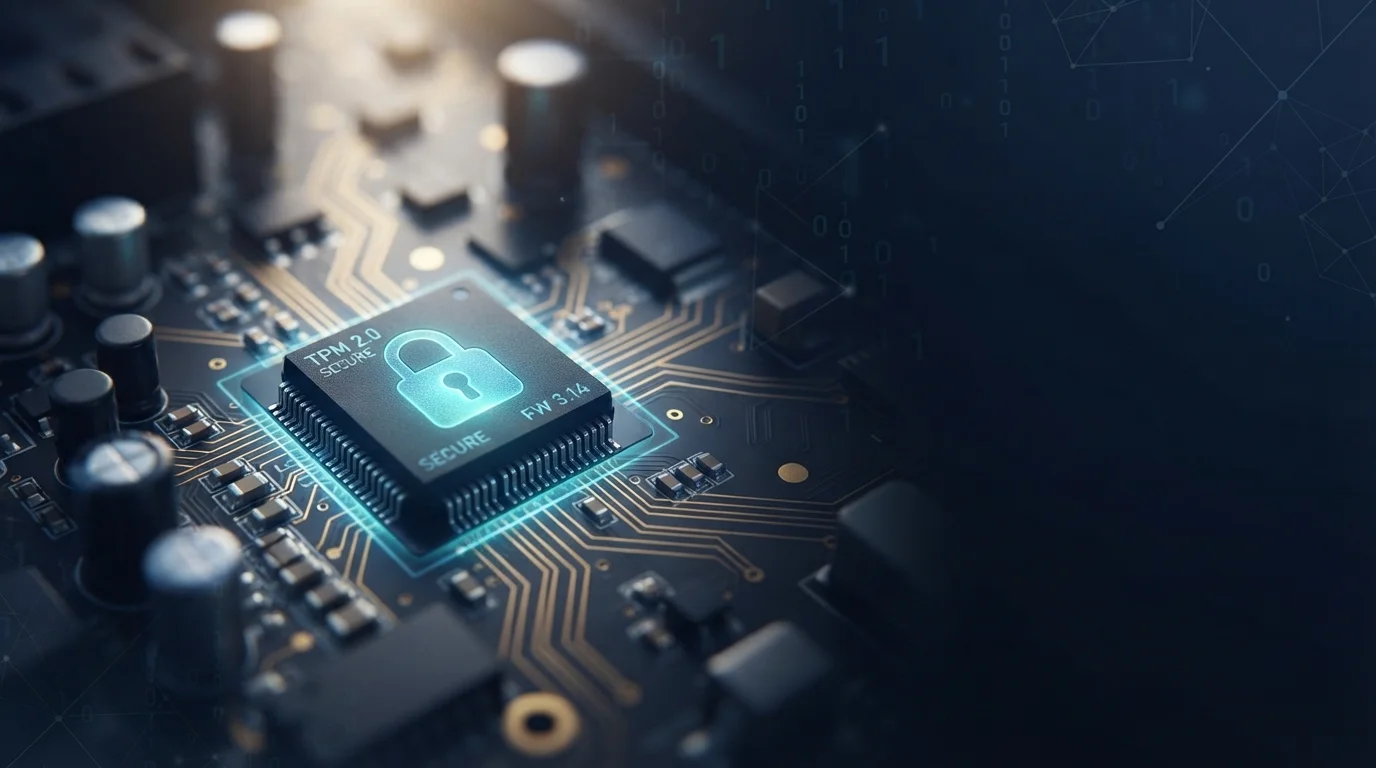
TPM stands for Trusted Platform Module. It’s a small chip, or a piece of firmware built into your processor, that handles security tasks separately from your main CPU. Think of it as a locked safe inside your computer: it stores encryption keys, passwords, and certificates where regular software can’t reach them, and it handles the math behind encrypting data, generating secure random numbers, and verifying digital signatures.
TPM 2.0 is the current version of this standard. It replaced TPM 1.2 with stronger encryption support and compatibility with newer security protocols, which is why Windows 11 asks for 2.0 specifically and won’t accept the older version.
There are two ways a PC can have TPM 2.0:
- A dedicated chip soldered onto the motherboard, common on older business laptops and desktops.
- Firmware TPM, built directly into the processor. Intel calls this PTT (Platform Trust Technology), and AMD calls it fTPM. Most PCs made from around 2016 to 2018 have one of these built in, even if it’s turned off by default.
Why Windows 11 Requires TPM 2.0
When Windows 11 launched in 2021, TPM 2.0 was one of its most debated requirements, since it blocked a lot of otherwise capable PCs from upgrading. Microsoft has not backed down since. In a 2024 blog post, the company reaffirmed that TPM 2.0 is a fixed requirement it has no plans to relax, even as Windows 10 approached the end of its support life in October 2025.
The reasoning comes down to what TPM 2.0 enables:
- BitLocker device encryption, which Windows 11 turns on by default on many PCs, uses the TPM to store the encryption key securely.
- Secure Boot relies on the TPM to confirm nothing has tampered with the startup process before Windows loads.
- Windows Hello for Business and Credential Guard use it to protect your login credentials from being lifted by malware.
Microsoft’s position is that software-only security isn’t enough anymore. A hardware-based root of trust makes it much harder for attackers to steal credentials or tamper with the boot process, even if they get malware running on the machine.
How to Check If Your PC Has TPM 2.0
You can check this in under a minute, no technical background needed.
Option 1: The TPM management console
Press the Windows key + R, type tpm.msc, and press Enter. Look at the Status field:
- “The TPM is ready for use” means it’s present and working. Check the Specification Version underneath. It needs to say 2.0.
- “Compatible TPM cannot be found” means it’s either disabled in your BIOS or genuinely not present.
Option 2: Windows Security app
Go to Settings > Privacy & Security > Windows Security > Device Security, and look for “Security processor details.” If it’s listed there with version 2.0, you’re set.
Option 3: PC Health Check app
Microsoft’s own PC Health Check app checks TPM along with every other Windows 11 requirement at once, which is useful if you’re not sure what else might be missing.
If TPM Is Disabled, Here’s How to Turn It On
Many PCs that fail the check actually have a working TPM, it’s just switched off in the BIOS. To enable it:
- Restart your PC and enter the BIOS or UEFI setup. The key varies by manufacturer, commonly Delete, F2, F10, or F12 right after powering on.
- Look for a tab called Security, Advanced, or Trusted Computing.
- Find the setting named Intel PTT, AMD fTPM, Security Device Support, or simply TPM, and set it to Enabled.
- Save changes and exit. Your PC will restart.
- Reopen
tpm.mscto confirm it now shows “Ready for use.”
The exact menu names differ between motherboard brands, so if you can’t find the setting right away, check under both Security and Advanced tabs before assuming it isn’t there.
What If Your PC Doesn’t Have TPM at All
If tpm.msc shows no compatible TPM even after checking the BIOS, the hardware genuinely isn’t there. This is most common on custom-built desktops with older motherboards, or PCs with processors made before roughly 2016.
In that case, the realistic options are:
- Check whether your motherboard has a header for an add-in TPM module, though these are hard to find for older boards now.
- Plan for a hardware upgrade if you want to run Windows 11 with full support and future security updates.
- Stay on Windows 10 for now, keeping in mind that it’s past its official support window, so it no longer receives security patches unless enrolled in extended support.
Unofficial ways to install Windows 11 on unsupported hardware do exist, but Microsoft doesn’t guarantee updates, stability, or security features on those installs, so most people are better off treating TPM 2.0 as a real requirement rather than an obstacle to route around.
Running Into Errors After Enabling TPM or Upgrading?
Turning on TPM 2.0 or moving to Windows 11 sometimes surfaces separate issues during setup or updates. If you hit one of these afterward, here’s where to go:
- Windows 11 Error 0x80073712: Complete Fix Guide
- Windows 11 Error 0x800F0922: Easy EFI Partition Fix. This one is especially common right after a firmware change like enabling TPM, since it also touches boot-related settings.
Quick FAQ
Can I install Windows 11 without TPM 2.0?
Officially, no. Microsoft’s supported installer will block it. Unsupported workarounds exist, but they come without guaranteed updates or security features.
Does turning on TPM 2.0 slow down my PC?
No. It runs quietly in the background and has no noticeable effect on day-to-day performance.
Is TPM 2.0 the same thing as Secure Boot?
No, but they work together. TPM stores and protects security keys, while Secure Boot uses those keys to verify that nothing has tampered with your system during startup.
